How to install a custom GeoFS livery
- Download the GeoFS texture. In the maker above, press Download for GeoFS. You get one PNG, laid out the way GeoFS expects for that aircraft.
- Open GeoFS with LiverySelector. LiverySelector is the free community add-on most GeoFS pilots already use. Install it from its GitHub page, then start GeoFS. Our LiverySelector guide shows each step.
- Pick the same aircraft. Choose the matching aircraft in GeoFS (for example Airbus a320-214), then open the LiverySelector panel.
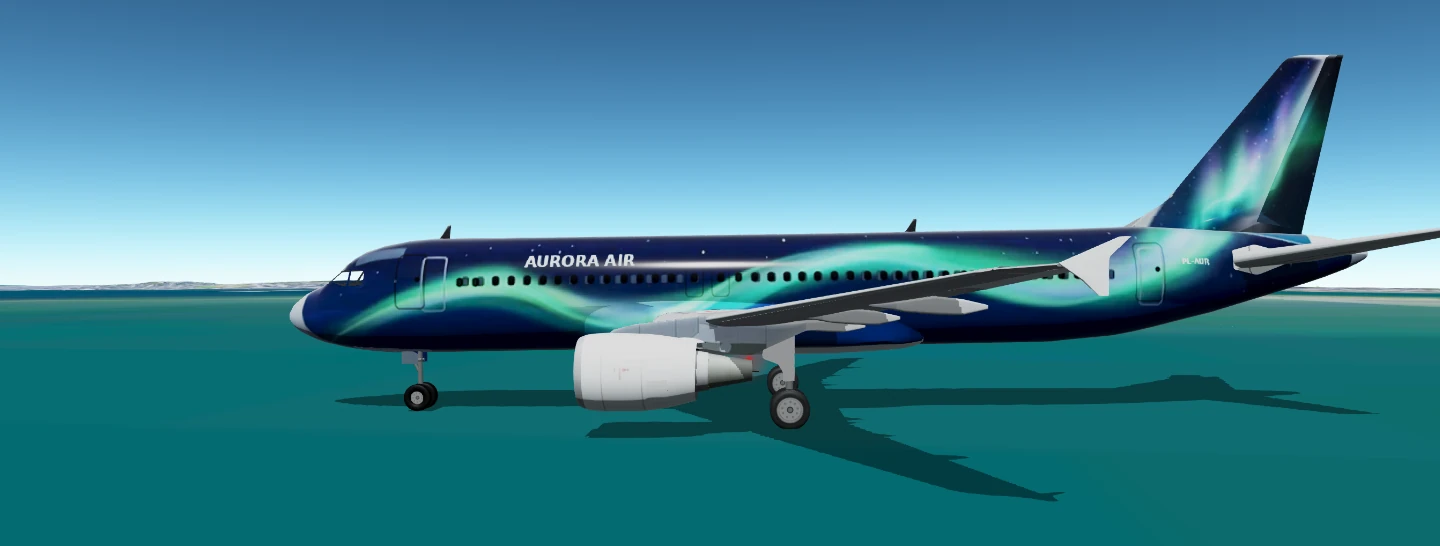
- Load the file. Under Load External Liveries, open the Direct tab and choose the PNG you downloaded. The GeoFS livery appears on your aircraft straight away.
A livery loaded with Direct is visible to you only. To let other pilots see it in multiplayer, it has to go through LiverySelector’s own submission and review.
Why a GeoFS livery is hard to paint by hand
A GeoFS livery is a texture: the aircraft’s skin flattened into one square image. The fuselage is laid out twice (left and right side), the belly and fin sit in their own corners, and the wings, engines and wheels are packed around them. Painting one by hand means working on that flattened layout and checking in the simulator after every change. Text is the trap: on the right-hand side the airline name has to be painted mirrored, or it reads backwards in the sim.
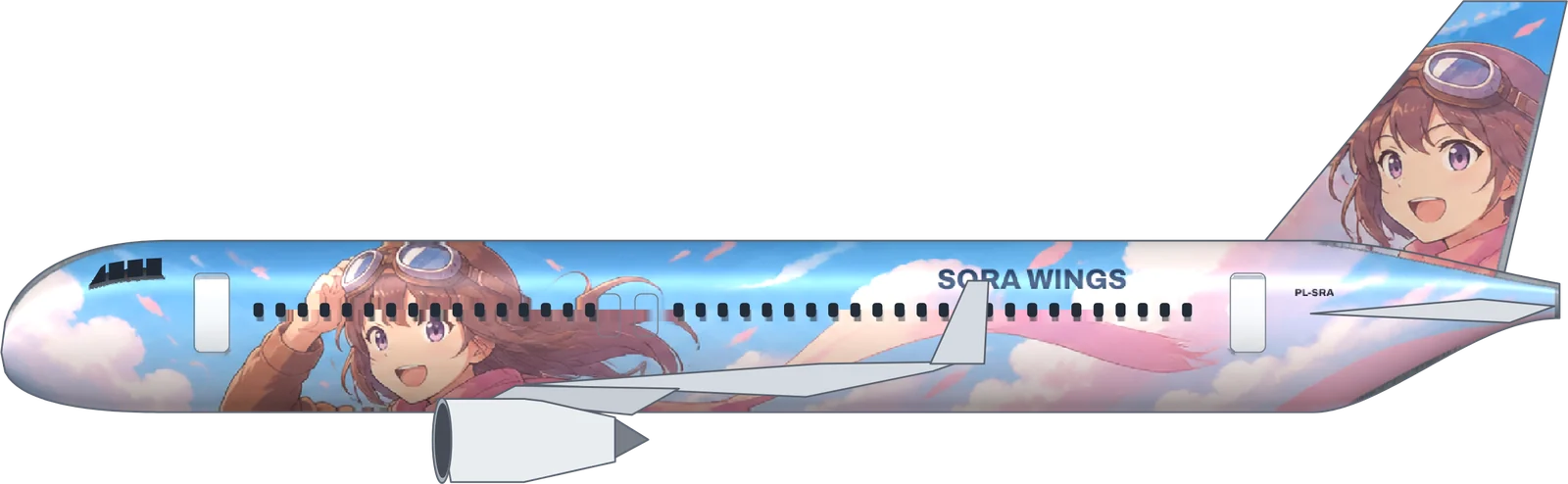
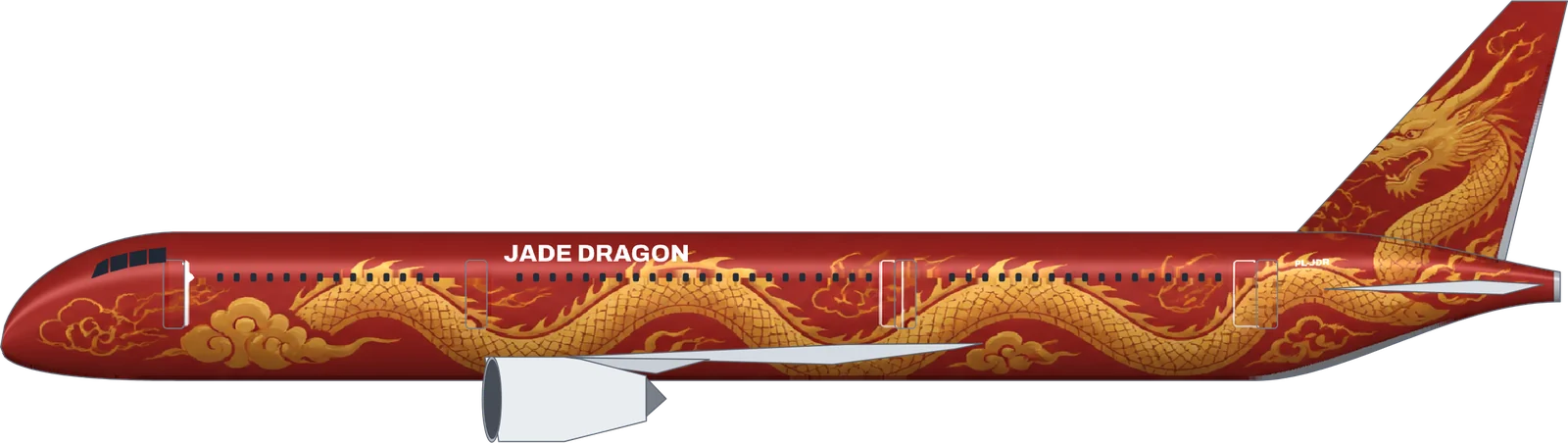
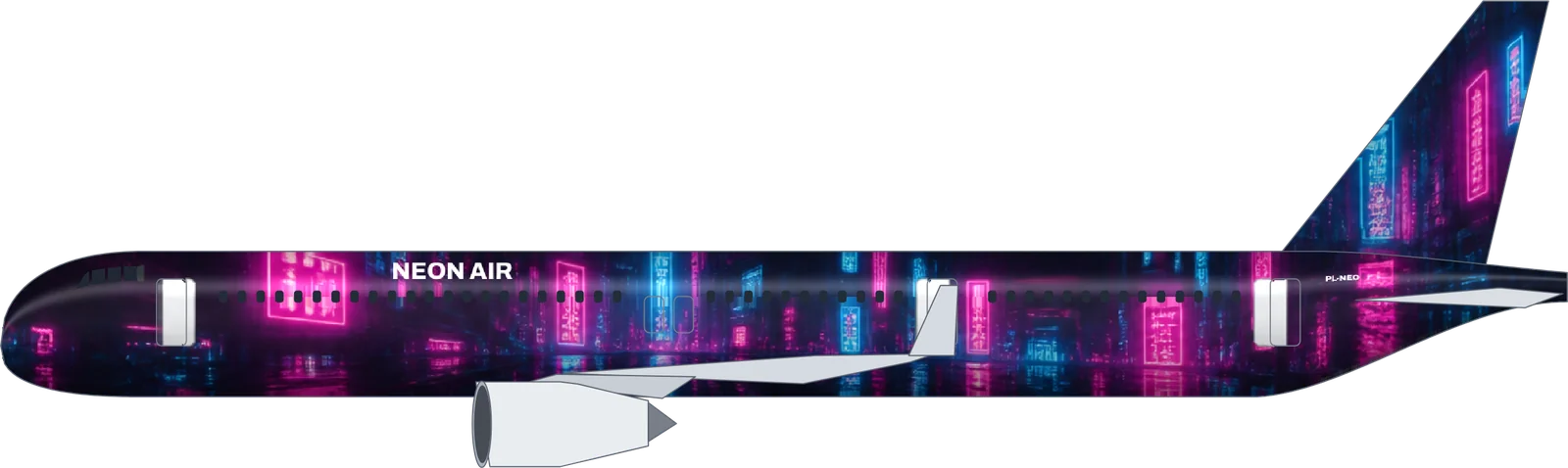
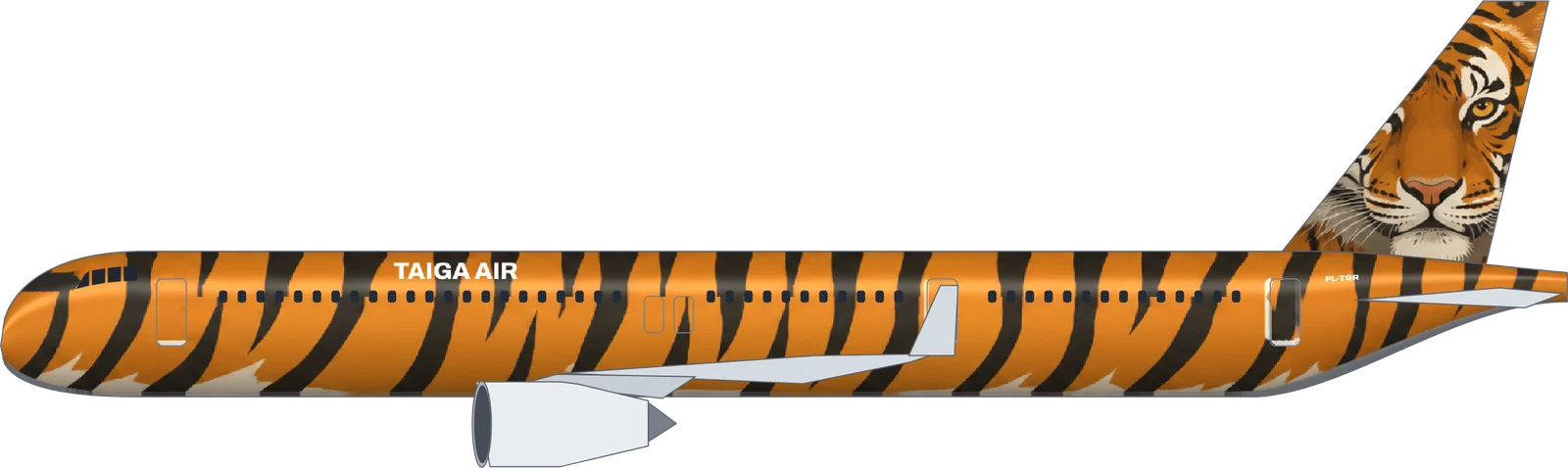
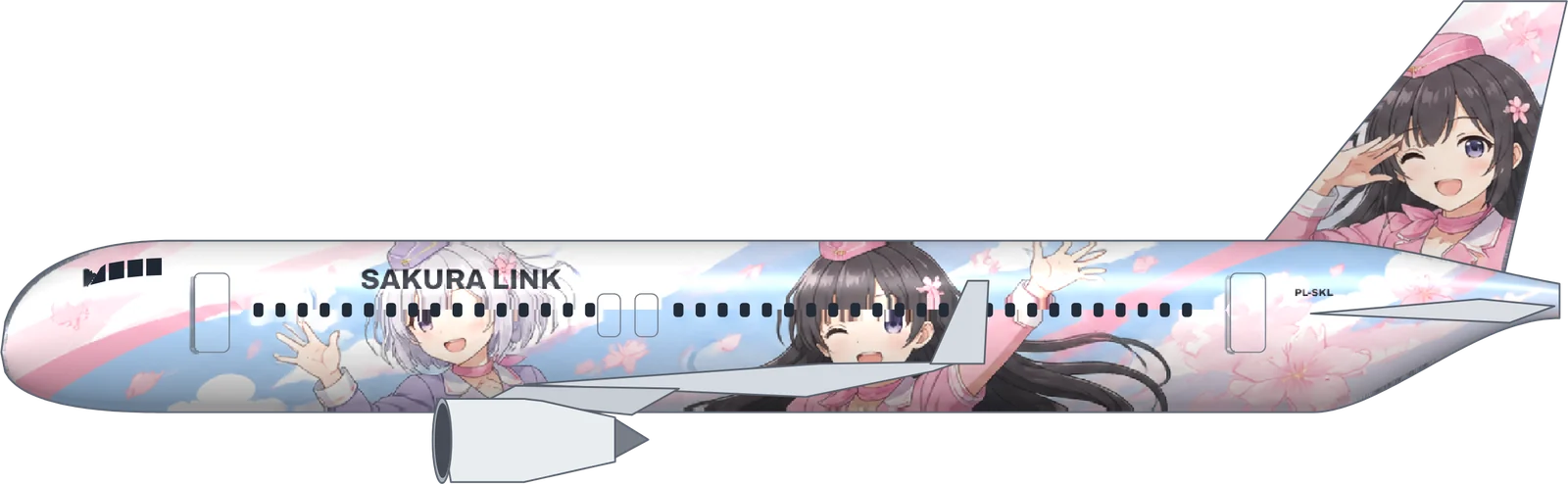
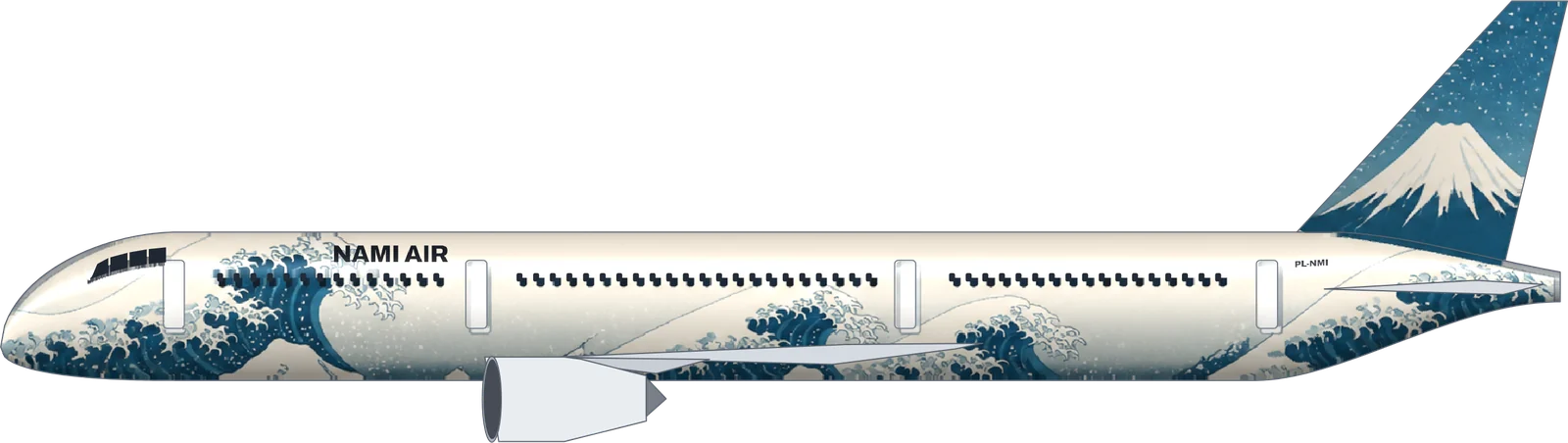
The GeoFS livery maker does that part for you. You design on a normal side view; the texture is generated from it, with the right side mirrored, the titles placed clear of doors, and the windows and door outlines of the original model kept. Full AI artwork goes through the same step, so an anime crew or a dragon lands on the right panels of the GeoFS aircraft.
GeoFS aircraft supported
- Airbus A320: the classic single-aisle. In GeoFS: Airbus a320-214.
- Airbus A321neo: the stretched A320 with the big new engines. In GeoFS: Airbus a321neo.
- Boeing 737-800: the short-haul workhorse with the long dorsal fin. In GeoFS: Boeing b737-800.
- Boeing 787-9: a long-haul widebody for your flagship routes. In GeoFS: Boeing b787-9.
Every design works on every aircraft: switch types in the maker and the titles, stripes and tail follow the new shape. Full AI artwork is painted for one aircraft at a time, so paint it again on each type you fly. More types (777, A350, A330neo, E-Jets) are on the way.
Make a GeoFS livery that looks good in the sim
- Design for the chase camera. Most of the time you see your aircraft from behind and above, at a distance. The tail and the upper fuselage matter most; small details near the belly are rarely seen in flight.
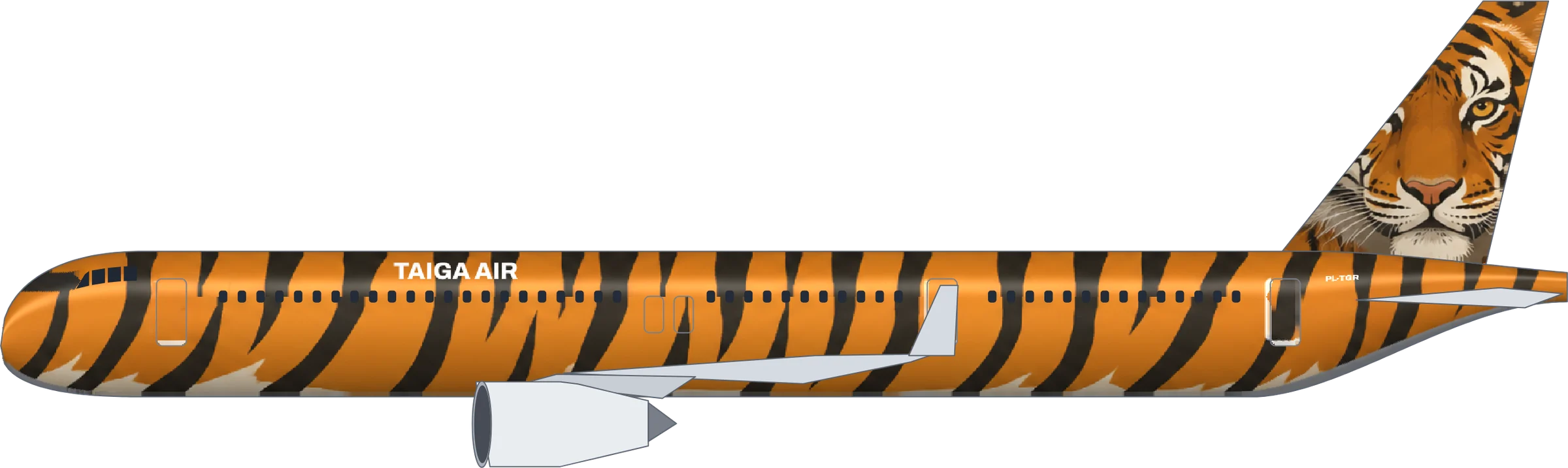
- Big shapes beat fine detail. GeoFS textures are 1024 or 2048 pixels for the whole aircraft. A huge tiger face or a wave that runs the length of the fuselage survives that; a tiny logo does not.
- Make the titles bigger than feels right. At chase-camera distance, small titles turn into a grey smudge. The sizes the maker picks are already tuned for distance.
- Check the belly on take-off. The belly is visible on rotation and from the tower view. A belly colour that matches the tail ties the GeoFS livery together.
Troubleshooting a custom GeoFS livery
- The livery looks scrambled. The texture was made for a different aircraft. Each GeoFS aircraft has its own texture layout, so pick the same type in the maker and in GeoFS.
- Nothing changes when I load the file. Make sure LiverySelector is running (its panel appears next to the GeoFS livery button) and that you used the Direct tab.
- The livery is gone after a restart. A livery loaded with Direct lasts for the session. Load the PNG again next time, or keep it in a folder with your other GeoFS liveries.
- The download button does nothing. The texture is built in your browser from the community layout files. Check your connection and try again; some school or office networks block the file server.
Ideas for GeoFS virtual airlines
Give your virtual airline one look across the fleet: design once, switch aircraft, download a texture for each type. Use full AI artwork for event aircraft, like an anime crew jet for a fly-in or a dragon for a new-year route, and keep a clean livery for everyday flying. Every airline you make here is fictional, which is exactly what a new VA needs.